
Presets tab

Presets are saved looks. Applying one replaces the current Develop look while preserving what belongs to the photograph rather than the look: its crop, its develop layers with their masks, the document selection, any removals, and the Finish layer stack. One Undo returns to the previous look.
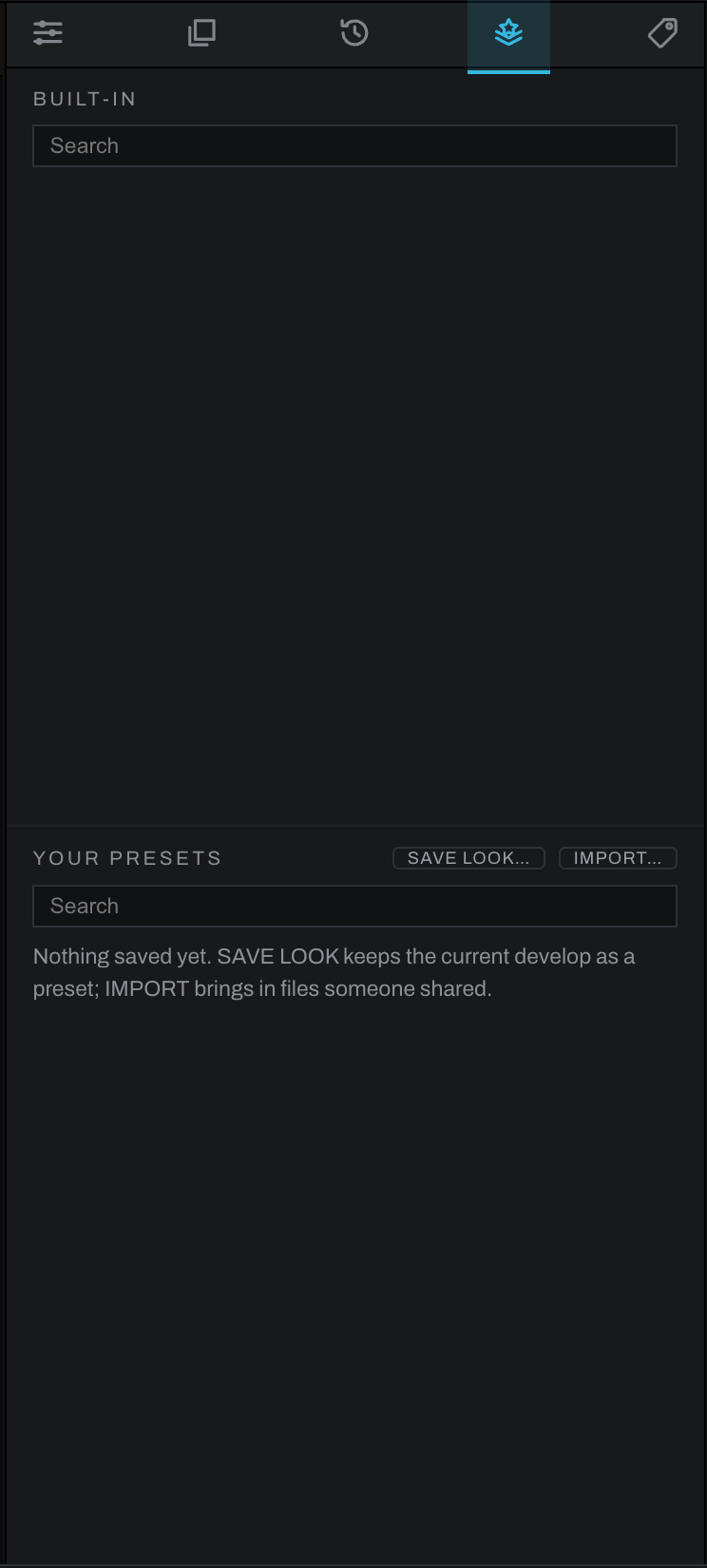
Built-in presets
Built-in looks are read-only and grouped into categories. Categories begin collapsed, and stay as you leave them while the app is open, even after visiting another tab. Click a category to open it, or type in Search to show matching looks across categories. Click a preset name to apply it. Use Export to save a shareable copy.
Your presets
Your presets work the same way but can be created and removed. The two glyphs beside the heading are the actions: the bookmark with a plus, Save look, stores the current Develop chain, and asks for a name and optional category; the tray with an arrow, Import, adds preset files. The remove button moves a user preset into presets/.trash; it does not permanently erase it.
What a look includes
A look is intended to transfer development decisions: exposure, color, curves, detail, and other Develop-chain operations. It does not capture the photograph's crop, its develop layers or their masks, the document selection, removals, or the Finish layer stack. This makes a look reusable across differently composed photographs.
A practical workflow
- Finish the global look on a representative photograph.
- Open Presets and click the bookmark, Save look.
- Name it for the result, not the source file, and assign a category if useful.
- Open another photograph and click the new preset.
- Fine-tune exposure and white balance for that frame.