Graph canvas
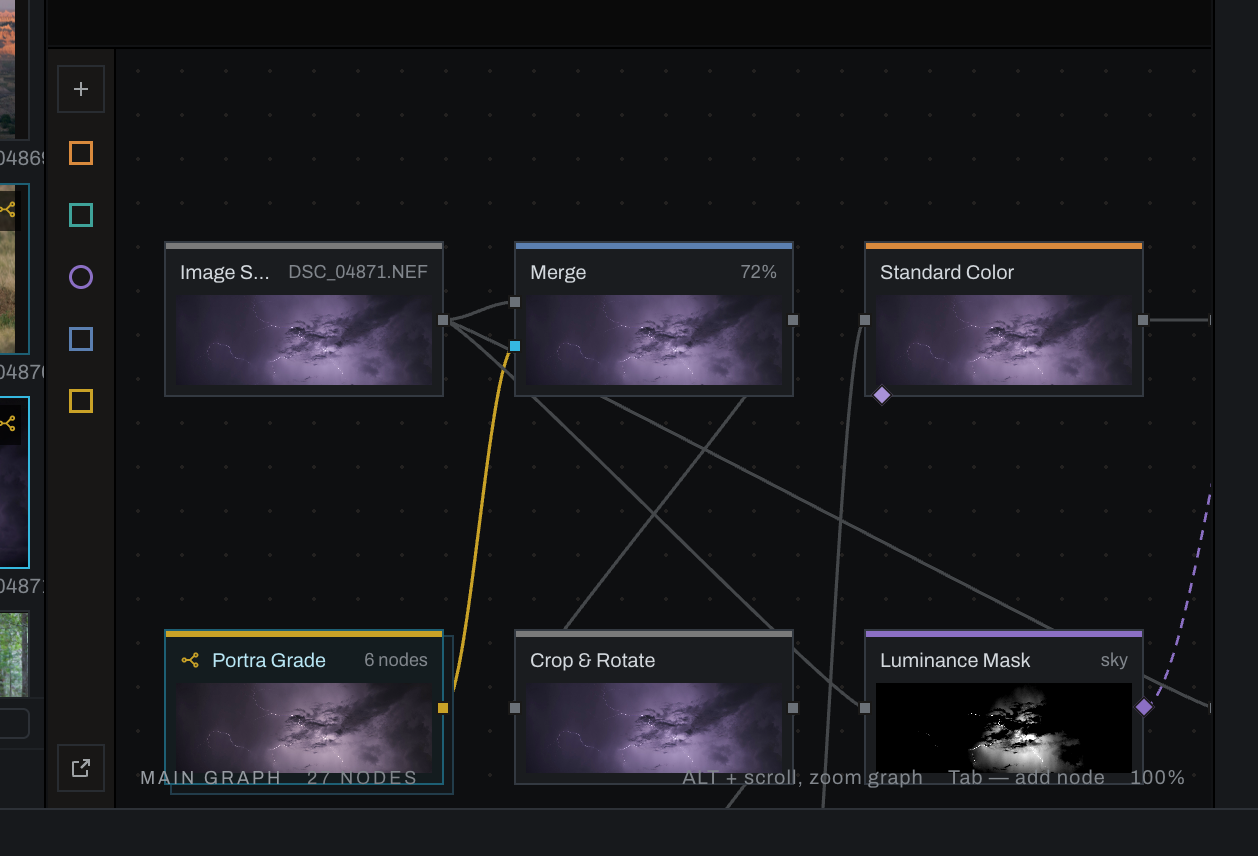
The graph canvas is a pan-and-zoom workspace for arranging and connecting nodes.
Navigate
Scroll to zoom the graph and drag the canvas to pan using the configured graph navigation gestures. Reset view returns to the default framing. In the combined image/graph navigation model, Alt/Option directs mouse navigation to the graph and Shift+Alt can navigate image and graph together.
Select and move nodes
- Click a node to select it.
Shift-click adds or removes a node from the selection.- Drag empty canvas to marquee-select.
- Drag selected nodes to arrange them.
- Press
Dto disable or enable selected nodes. - Press
F2to rename one selected node. - Press
/to find existing nodes by name;*and?wildcards work and selection follows the query. Ctrl/Command+Ugrows the selection upstream, including masks.
Add nodes
Press Shift+Space, click the graph +, choose Node > Find a Node…, or right-click and choose Find a Node…. Search by operation name, or browse categories. A node added from the empty-canvas menu appears at the click position; where a sensible connection is selected, Heeler can splice it into the chain.
Connect and rewire
- Hover any port to see its name (for example
Exposure.inorMerge.fg) below the pointer; the status bar adds what the port carries. Grey squares on the left are image inputs (rgb); the diamond at the bottom left is the node's mask input (alpha); the diamond on the right of a masking node is its field output (alpha). Wires end at the centre of each dot. - Drag an output port to a compatible node or input. Eligible targets outline; the target under the pointer highlights. On a card with stacked inputs the drop lands on the nearest port.
- Dropping on an already-fed input replaces that feed.
- Drag from an input to disconnect or reroute it.
- Drag a mask output to the node it should limit. One mask can feed multiple nodes.
- Drag the handle at the head of an existing mask wire to move it; drop on empty space to remove it.
- Drop a node on a highlighted wire to splice it into that connection. Its previous neighbors reconnect.
Alt/Option-drag a node out of a chain to remove it while reconnecting its neighbors.- A Merge or Blend Mode with nothing on its second input passes its base through, so deleting the node that fed it never breaks the render.
Connections that would create a loop are refused before the drop.
Duplicate and reset
- Duplicate the selected nodes from the context menu or with
Ctrl/Command+D. Copies land a step down and right, keep the wires among themselves, and become the selection. The photograph, Output, a layer's own cards and the Finish stack cannot be duplicated. - Reset a node from the reset glyph beside its switch in the Inspector, or from the context menu for the whole selection. Every dial and choice goes back to its defaults, curves to the diagonal; strokes and the switch stay.
Second pictures
- A File node (Source) reads any image from disk as a second source: choose the file in the inspector. Image Source stays the photograph itself.
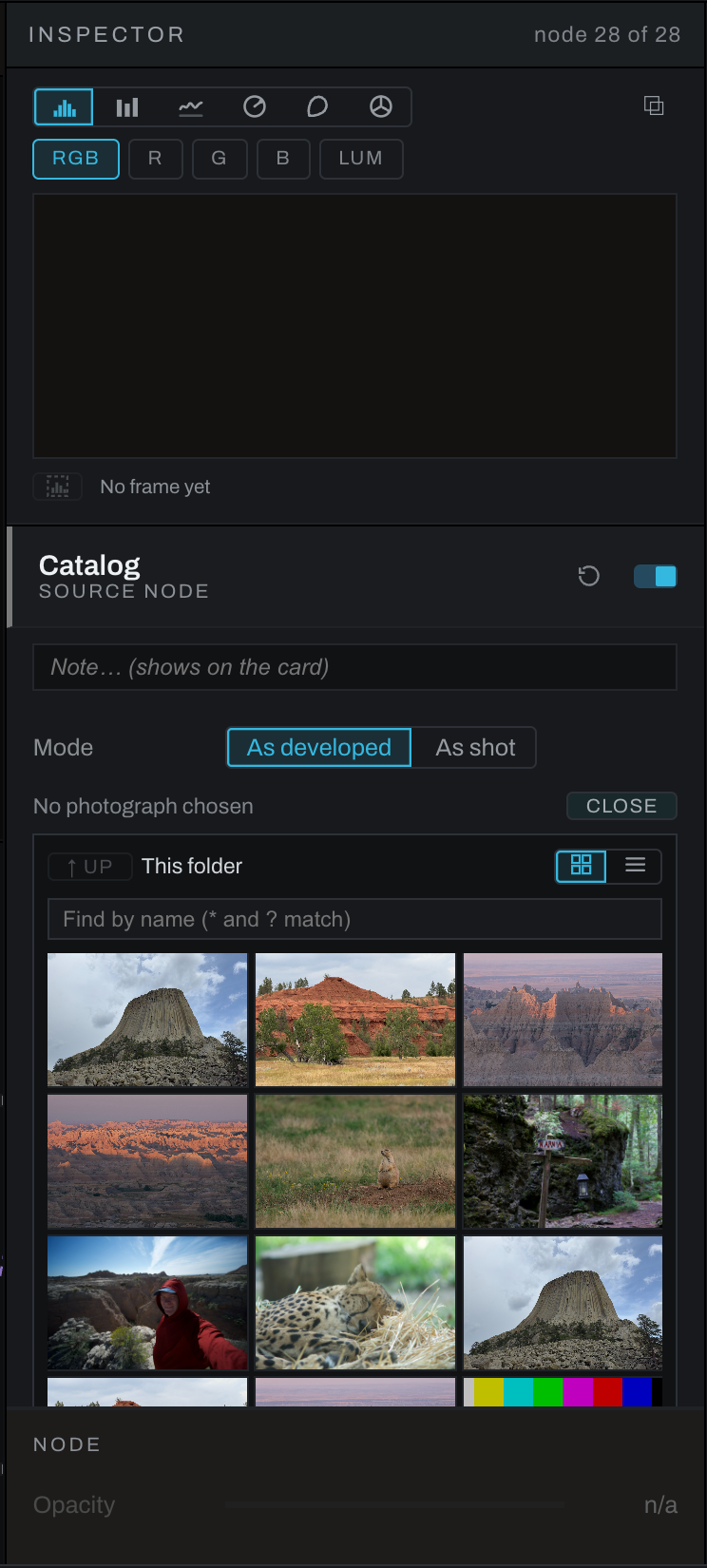
- A Catalog node (Source) brings in another photograph from the session, as developed (its own Output, from the graph saved beside it) or as shot. Its browser opens in the folder on screen, walks up and into any folder the catalog has scanned, filters by name, and shows a grid or a list. A folder the Library has not opened yet says so; opening it in the Library scans it and builds its thumbnails. A photo cannot contain its own developed self.
- A Transform node (Utility) moves, scales and rotates about a pivot in one resample. Moves are a percentage of the frame; what leaves the frame is gone and what enters is transparent, so a transformed layer merges cleanly over a background.
- Channel Join (Utility) takes three fields as r, g and b and outputs an rgb image.
- Merge and Blend Mode have a Fit choice for a second picture of another shape: Fit keeps it whole inside the frame, Fill covers the frame, Stretch pulls it to the frame, None places it at its own size. A new node starts on Fit; a graph saved before the choice existed keeps stretching, as it always did.
See Example networks for these in use.
Context menu
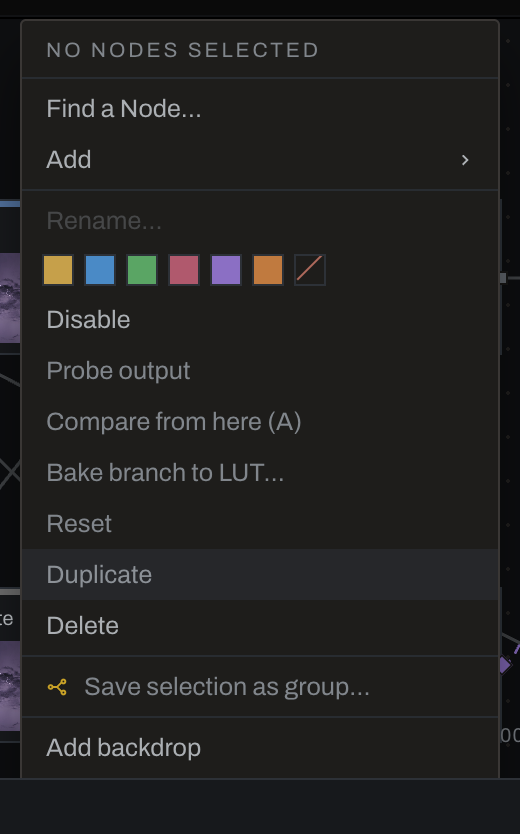
Right-click the canvas or a selection to:
- Find or add a node by category. Every category's list reads alphabetically.
- Duplicate or reset the selected nodes.
- Rename one selected node.
- Tint selected cards or clear their tint.
- Disable or enable selected nodes.
- Probe one node's output in the image viewport.
- Arm or complete an A/B comparison between two nodes.
- Bake a color-only branch to a
.cubeLUT. Spatial effects and masks cannot be represented in a LUT. - Delete nodes. Neighbor healing follows Preferences; hold
Shiftto invert the configured behavior. - Save two or more selected nodes as a group.
- Add a backdrop around the selection or at the pointer.
- Auto-arrange the graph left to right.
- Reset the graph view.