
Masks and selections

A layer mask controls layer visibility: white reveals, black hides, and gray partially reveals. It does not erase layer content.
Add and edit masks
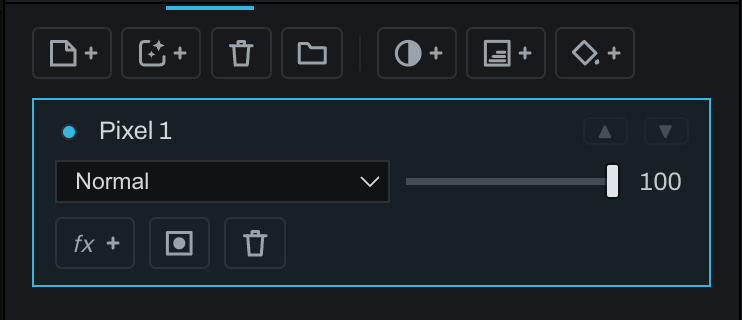
- Add Layer Mask creates a mask to paint by hand.
- Add Smart Mask creates a model-assisted mask and arms the Smart tool.
- Remove Layer Mask makes the layer visible everywhere again.
- The eye control previews the mask itself.
- The overlay control shows the mask as a colored wash on the photograph.
Choose whether the layer content or mask is active before painting. Mask brush settings use the same brush engine, tip, size, flow, softness, and texture controls as painting.
Every Finish layer has a Depth mask button beside its mask button. Lit, the layer's mask is multiplied by the photograph's depth map, the nearest taking the layer's full effect and the farthest none, and a row appears under the buttons with Invert depth, which reads the map the other way for this layer only, and the eye that shows the map itself, with the Levels histogram of the depth map under it: the same three handles Develop's layers have, to choose which depths take the layer's effect. A layer with no mask yet gets a brush mask, born revealing everything, the moment Depth is switched on, so there is a mask for the depth to shape. See Local adjustments.
Move between selections and masks
- Selection from Mask loads a baked copy of the active mask as the document selection without altering the mask.
- Use the mask-from-selection control to add or replace a layer mask from the current selection.
- Select Layer Pixels creates a document selection from visible pixels on the active layer.
Polish selection
Polish refines a document selection edge. Matte re-reads the edge from the photograph; Add and Remove paint directly; Soften feathers locally. Preview modes show the result as overlay, matte, or against neutral backgrounds. Apply keeps the refinement; Cancel or Escape restores the pre-polish selection.
Select By ranges
Select > Select By offers Luma Range, Color Range, Contrast, and Depth Range. Adjust From, To, and Falloff while viewing the live selection.
Done keeps the selection and Cancel restores its previous regions.
Depth Range adds the familiar depth eye in the same header. It shows the photograph's depth map, white near and black far, so you can judge the distance limits. Done and Cancel restore the depth view to its state before the dialog opened. If it was already on, it stays on.