
Node inspector
The Inspector is the right panel in Graph. It edits selected nodes and presents actions that operate on the selection or graph.
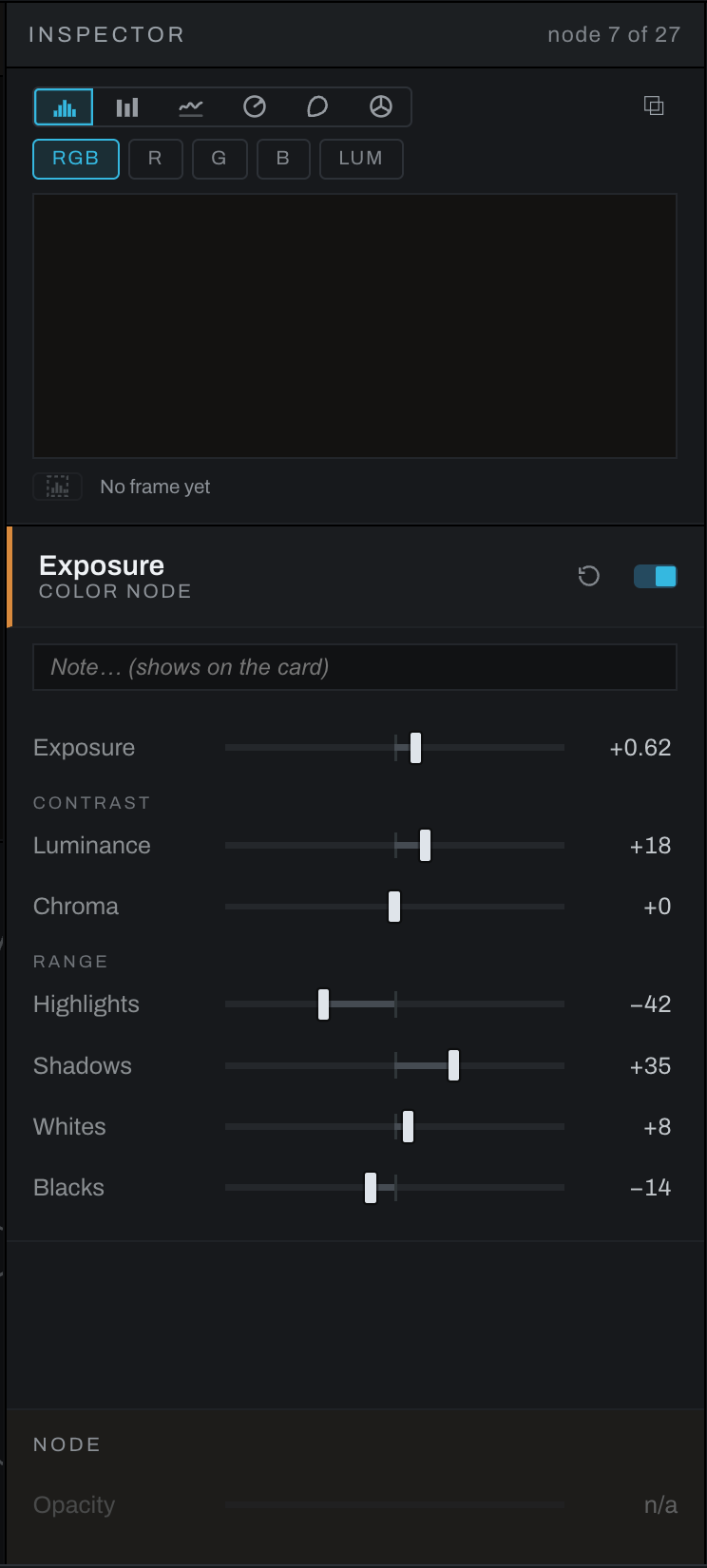
No selection and multiple selection
With no node selected, the Inspector provides graph-level context and actions where applicable. With multiple nodes selected, it reports the selection and offers actions that can apply to the set. Select one node to edit parameters.
One selected node
The Inspector shows the node's name, category or group status, enabled state, mask status, and operation controls. Ordinary parameters appear as sliders, values, menus, color fields, files, curves, or purpose-built graphical editors. Graph can expose expert parameters that the simplified Adjustments section does not. A reset glyph sits beside the enable switch.
A node with no dials, such as Conditional, Merge or Channel Join, shows a port guide instead: each port's name, what it is for in plain words, and what feeds it. A Color Set's card shows the set's mask eye and eyedropper above its controls, as in Develop. The Opacity row at the bottom belongs to nodes that have one; on the others it reads n/a.
Use the Note field to record why the node exists or how it should be used. The note also appears on the node card.
Actions
- Rename the node.
- Enable or disable it.
- Reset it to its defaults.
- Probe its output in the image viewport. The scopes also read the probed output. Close the probe badge in the viewport to return to final output.
- Compare two branch endpoints A/B in the viewport and drag the divider.
- Bake a compatible color branch to a
.cubeLUT. - Delete the selection with configured neighbor healing.
- Auto-arrange the graph.
Published group controls
A group can publish selected internal parameters on its outer card and Inspector. Published controls let a reusable group expose the few values a user should change without opening the group. Open the group to edit its full internal graph.
Inspector location
Only one window owns the Inspector. If the graph is popped out, the Inspector can move with it and the main window shows an Inspector rail. Click the rail to bring it back.