
Heeler 2026.2
Heeler user guide
This guide follows Heeler's interface from left to right. Use it as a tour when you are new, or open the page for the part of the interface in front of you.
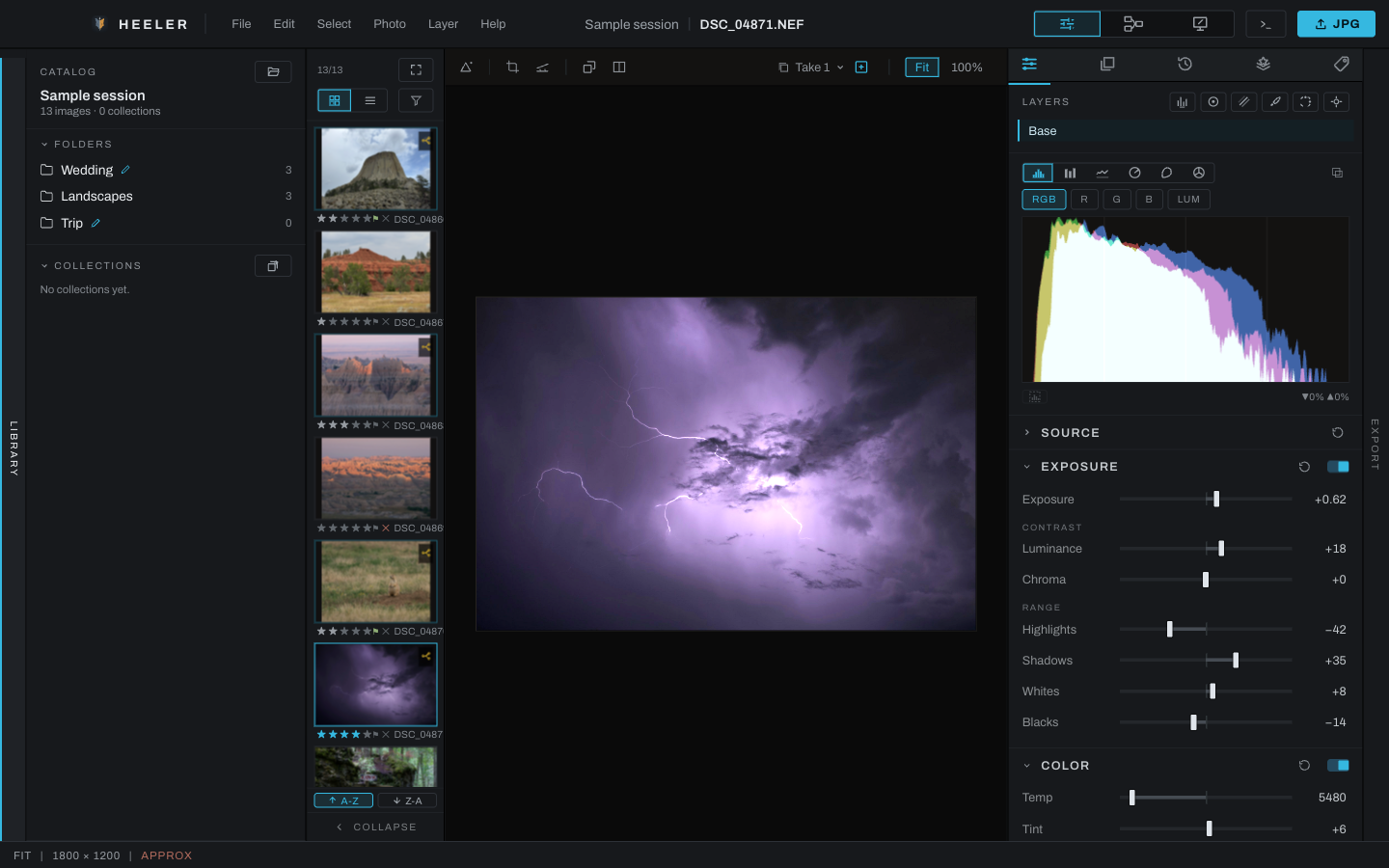
Start here
- Menus: commands that are always available from the top of the window.
- Workspaces and window layout: Develop, Graph, and Canvas.
- Library: folders, collections, catalog navigation, and sharing.
- Recovery bundles: catalog backups, edit bundles, offline verification, and restore.
- Thumbnails: selecting, filtering, rating, sorting, and the expanded table.
- Image viewport: zoom, pan, comparison, crop, selection, and viewing tools.
- Right panel: tabs, resizing, and split-panel behavior.
- Export: quick export, batch groups, presets, and the queue.
- Downloaded models: the machine-learning models behind the smart tools, installed on consent, updated from the release list, removed when you like.
- Node graph views: reading and editing the processing graph.
- Python scripting: console, external and batch automation, examples, and the complete
heelerpackage reference.
Merges, panoramas, and Bake to Image: freeze current edits into a new photograph while retaining the original.
Keyboard and screen reader checklist: a session with VoiceOver or Narrator, including dialogs, pop-outs and menus.
Right-panel tabs


Tab names appear when you point to their icons. Depending on the build and preferences, additional tabs such as Tether may appear.
How to read this guide
Controls are written as they appear in the UI. Click means the primary pointer button; right-click includes a two-finger click on a trackpad. Ctrl means Control on Windows and Linux. Where Heeler shows platform-specific shortcut labels, use Command on macOS.
Screenshot placeholders are production notes, not missing instructions. Each names the exact state that would best illustrate the surrounding text.
In the app's own viewer the chapters start folded; click a chapter's arrow to open it, and use the Back and Close icons in the header to retrace a link or close the guide.
Legal
- Legal: the End User License Agreement, Terms of Service, and Privacy Policy, as they were presented to you.