
Export
Export renders the selected photographs through their edits into new files. It does not alter source files, catalog entries, or editing instructions.
Reading tagged photographs
Heeler reads embedded matrix/TRC ICC profiles from JPEG, PNG, TIFF, and HEIF photographs and converts their color once into its linear sRGB working space. This includes Display P3, Adobe RGB, and ProPhoto profiles with RGB primaries and supported transfer curves. Preview and export use the same conversion, and alpha remains unchanged.
Untagged photographs are read as sRGB. Malformed, grey, unsupported, and LUT-based profiles also fall back to sRGB, with the reason and source filename in the log. HEIF uses the operating system's decoder on macOS and Windows; it requires the platform's HEIF support. RAW development retains its existing color interpretation. Export profiles remain sRGB.
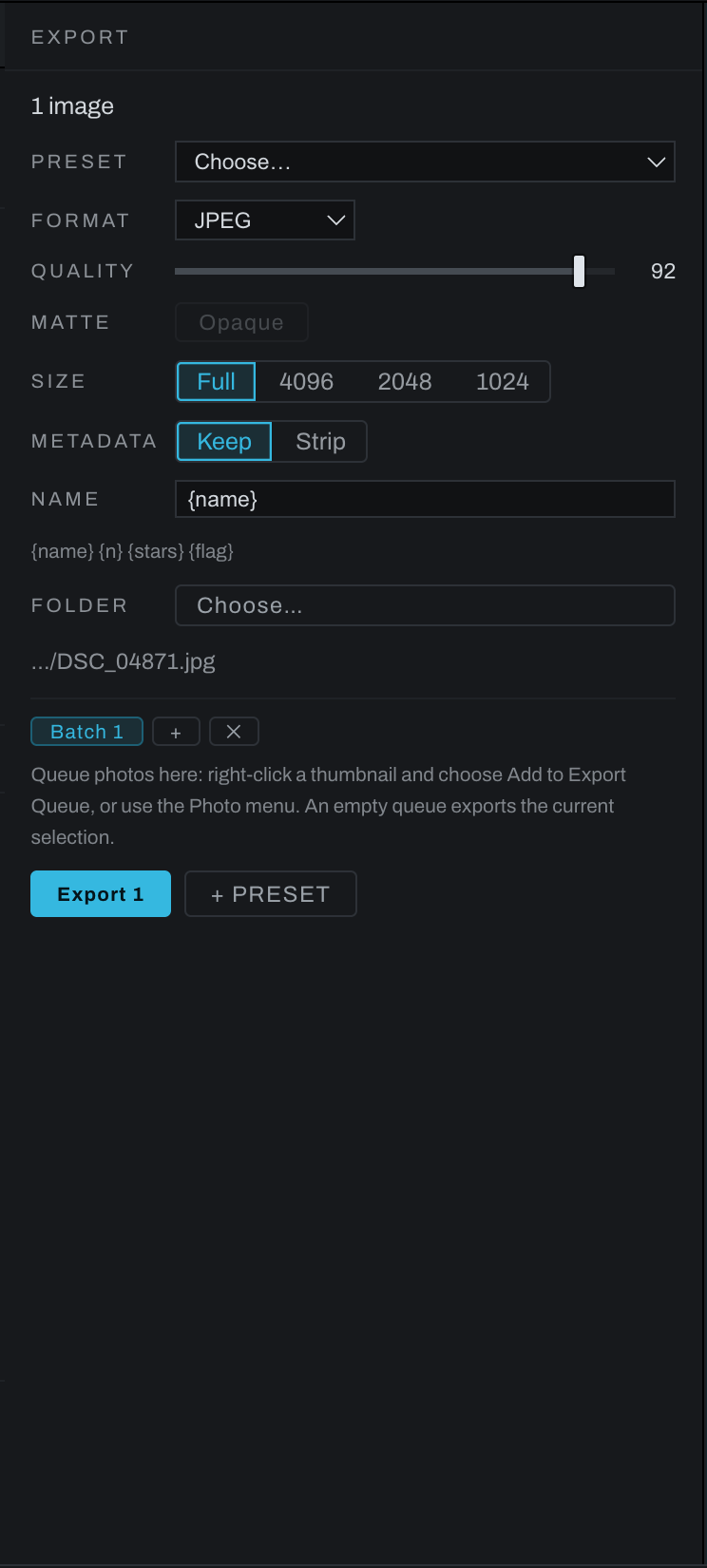
Open the Export panel
Click the vertical Export bar at the far right. Click it again to collapse the panel. The panel is available in Develop, Graph, and Canvas.
When the queue is empty, Export uses the current thumbnail selection or active photograph. When the queue contains photographs, it exports the active batch group's queue instead.
Settings
Preset
Choose a saved export preset to fill the settings at once. To create one, configure the panel, enter a preset name, and save it.
Format and quality
- JPEG is the standard sharing format.
- WebP is a compact web format.
- PNG is lossless.
- PNG 16 and TIFF provide 16-bit archival or further-editing output.
- DNG creates a baked linear raw-like file for another raw workflow.
Quality applies to lossy formats and is disabled for formats that do not use it. A setting around 92 is a strong general JPEG default; lower values trade fidelity for smaller files.
Matte
Enable Matte when transparent areas must be composited against a solid background for a format or destination that should not preserve transparency.
Size
Choose Full for all pixels or a long-edge limit such as 4096 or 2048 for web, review, or email output. Resizing preserves aspect ratio.
Metadata
Keep includes available camera and exposure metadata. Strip removes camera, location, and capture-time metadata from the output. This choice does not change the original.
Name
The filename template accepts {name}, {n}, {stars}, and {flag}. The preview under the field uses the first target photograph. Add {n} when multiple targets would otherwise produce the same name; Heeler warns about collisions before export.
Folder
Choose a destination folder. If no folder is set when a run starts, Heeler asks for one and remembers it for that batch group.
Existing files and originals
Exports never overwrite by default. When a name is already taken at the destination, the export writes to the next free name with a -2, -3 suffix and says so in the log. Re-running last week's batch into the same folder adds files beside the old ones rather than replacing them.
The Never overwrite an existing file preference (Preferences > Export) controls the one exception: with it turned off, a save dialog's Replace? confirmation is honored again for that single file. Batch runs and the queue always move to a free name, because nothing ever asked.
Two protections have no setting and cannot be turned off:
- An export never writes over the photograph being exported, however the destination is spelled.
- An export never writes over any photograph in your library. The save dialog asks about a file; it cannot know the file is a negative your catalog depends on, so the catalog is asked too. A previous export the library has never seen can still be replaced, which is what the Replace? prompt is for.
Queue and batch groups
Use Photo > Add to Export Queue or a thumbnail's context menu to add the current selection. Queued items remain available while you browse other folders and after restarting the app.
- Use the up and down controls to change run order.
- Remove an item with its remove control; the catalog photograph is untouched.
- Click
+to create another batch group. - Double-click a group tab to rename it.
- Each group has independent format, quality, size, metadata, naming, folder, preset, and queue settings.
- Removing a group removes that export setup, not the source photographs.
This makes it possible to queue the same photographs as full-size TIFFs in one group and web JPEGs in another.
Run and stop
Click the solid Export button. The progress bar advances through the targets and the report lists written and failed files. Stop abandons the remaining work but leaves files already written in the destination.
The Export button is disabled until there is at least one target and a usable destination. Check the queue or thumbnail selection and Folder when it is unavailable.
Quick Export
Use Photo > Quick Export…, a thumbnail's context menu, or the title-bar Export button for an immediate export without adding to the queue. The title-bar button exports JPEG by default; hold Alt/Option for PNG. Right-click it to set shared quick-export quality and output size. The app asks for a destination and reports completion in the log.
Memory and large exports
Before allocating whole-frame buffers, Heeler checks the image dimensions and estimates the render, resize, encoding and known intermediate buffers against the machine's physical memory. Cached images and other work in progress count against the same allowance. A large image can run when it fits; there is no fixed megapixel ceiling. A full-resolution panorama is capped at 8000 pixels on its long side, a 40 inch print at 200 dpi.
An export that cannot fit stops with a message naming the source file, the work that needs memory and the approximate shortfall. Memory pressure does not silently reduce the exported image or panorama canvas. Only your output-size settings change its size. Close other images, or choose a smaller output or a simpler edit. The original photograph remains untouched.